
安装Docker
Docker Engine 是 Docker 最核心的运行环境,也就是通常所说的 Docker。它负责真正创建、启动、停止和管理容器,是 Linux 上运行 Docker 的核心组件。
Docker Desktop 则是面向开发者桌面环境的 Docker 集成平台,它并不是另一套容器技术,而是在 Docker Engine 基础上增加了一层开发环境封装。由于 Windows 和 macOS 本身无法直接运行 Linux 容器(因为缺少 Linux Kernel),Docker Desktop 会自动创建一个轻量 Linux 虚拟环境,例如 Windows 使用 WSL2,macOS 使用虚拟机,然后在其中运行 Docker Engine。Docker Desktop 除了包含 Docker Engine,还提供图形化管理界面、自动更新、Docker Compose、Buildx、本地 Kubernetes 等开发工具,使开发者可以快速搭建容器开发环境。
WSL安装Docker开发工具
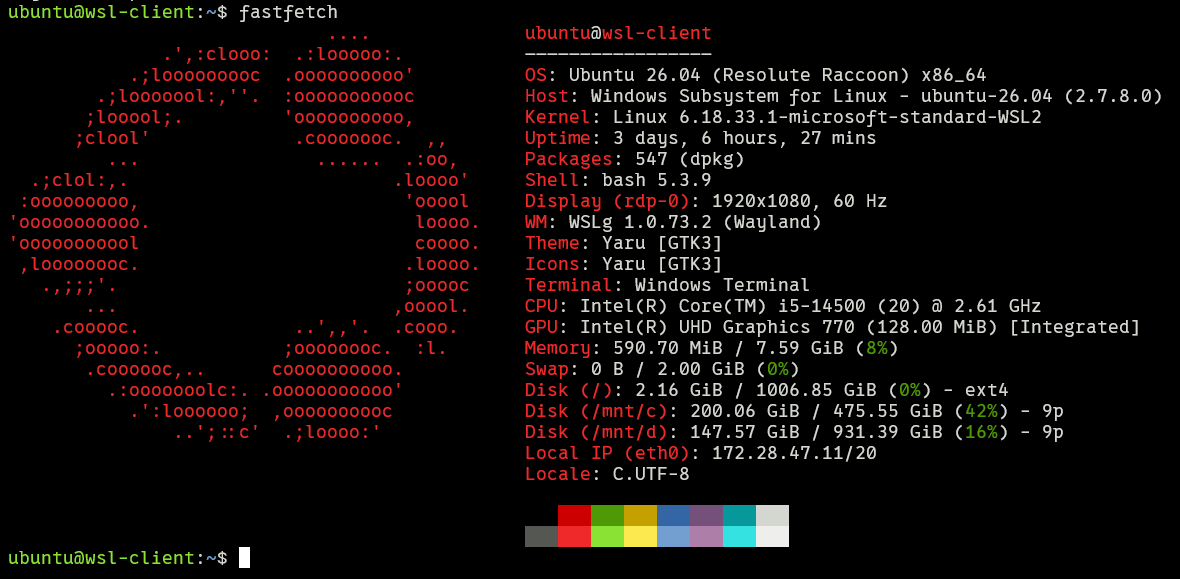
这里以WSL的Ubuntu 26.04 LTS为例进行安装Docker Engine。
安装依赖
Ubuntu安装软件之前首先需要更新系统软件源并安装相关的依赖,Ubuntu默认的系统软件源在国内访问可能速度较慢,推荐使用chsrc一键换源工具进行更换系统软件镜像源。
ubuntu@wsl-client:~$ curl -LO https://gitee.com/RubyMetric/chsrc/releases/download/pre/chsrc_latest-1_amd64.deb # 下载chsrc工具
ubuntu@wsl-client:~$ sudo apt install ./chsrc_latest-1_amd64.deb # 安装chsrc工具
ubuntu@wsl-client:~$ sudo chsrc set ubuntu # 更改Ubuntu系统软件源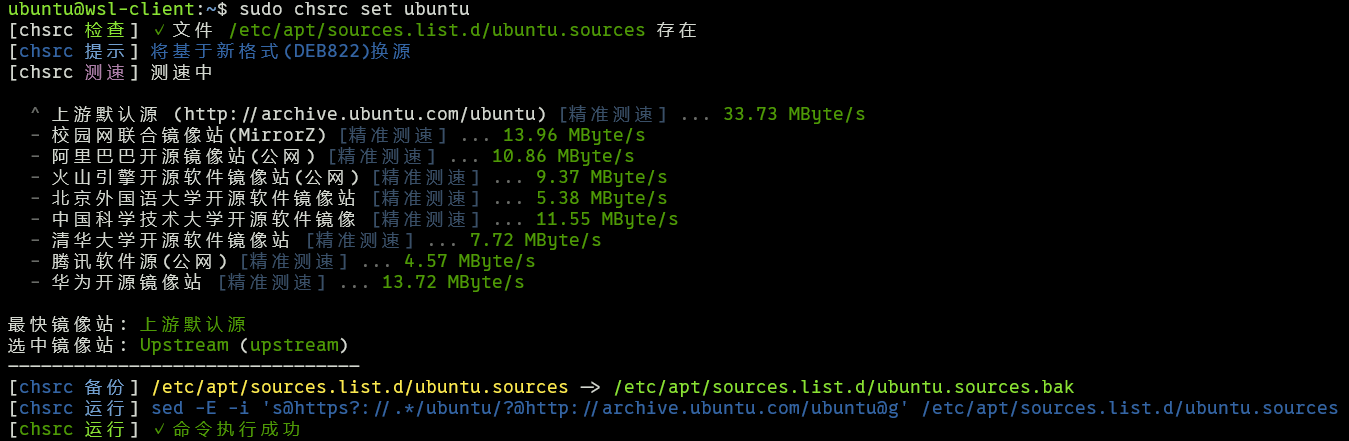
更换好系统软件源以后,需要安装 ca-certificates curl gnupg lsb-release这几个Docker依赖项。
ubuntu@wsl-client:~$ sudo apt update
ubuntu@wsl-client:~$ sudo apt install -y ca-certificates curl gnupg lsb-release
添加Docker软件仓库
Ubuntu 默认仓库里的软件和 Docker 官方维护的软件不是同一个来源,也不是同一个版本体系,我们选择使用Docker官方维护的软件源进行安装,首先需要添加GPG Key来信任 Docker 官方仓库,并安装 Docker 官方发布的软件包。
ubuntu@wsl-client:~$ sudo install -m 0755 -d /etc/apt/keyrings
ubuntu@wsl-client:~$ curl -fsSL https://download.docker.com/linux/ubuntu/gpg | sudo gpg --dearmor -o /etc/apt/keyrings/docker.gpg # 若报错,可使用以下阿里云GPG key
ubuntu@wsl-client:~$ curl -fsSL https://mirrors.aliyun.com/docker-ce/linux/ubuntu/gpg | sudo gpg --dearmor -o /etc/apt/keyrings/docker.gpg
ubuntu@wsl-client:~$ sudo chmod a+r /etc/apt/keyrings/docker.gpg # 添加可读权限
添加好官方GPG key以后还需要添加官方的软件仓库以便安装Docker软件。
ubuntu@wsl-client:~$ echo "deb [arch=$(dpkg --print-architecture) signed-by=/etc/apt/keyrings/docker.gpg] https://download.docker.com/linux/ubuntu $(lsb_release -cs) stable" | sudo tee /etc/apt/sources.list.d/docker.list > /dev/null # 若网络不佳建议使用以下阿里云国内源软件仓库
ubuntu@wsl-client:~$ echo "deb [arch=$(dpkg --print-architecture) signed-by=/etc/apt/keyrings/docker.gpg] https://mirrors.aliyun.com/docker-ce/linux/ubuntu $(lsb_release -cs) stable" | sudo tee /etc/apt/sources.list.d/docker.list > /dev/null

ubuntu@wsl-client:~$ sudo apt update # 更新软件仓库
安装Docker
软件仓库更新好以下使用以下命令安装Docker,安装的内容包括:
docker-ce: 整个容器运行的大脑,负责管理容器的生命周期网络、存储卷等。它以后台服务形式运行,并监听 API 请求;docker-ce-cli: 它负责将你输入的指令翻译成 API 请求,发送给上面的docker-ce守护进程执行;containerd.io:Docker引擎本身不直接跑容器,而是将底层任务交给containerd,负责管理容器进程的生命周期、镜像传输和本地存储,是行业标准容器运行时,比 Docker 引擎更轻量;docker-buildx-plugin: 镜像构建增强工具,它扩展了docker build命令,核心价值在于支持 跨平台构建和 并行构建,是现代化 CI/CD 打包镜像的必备插件;docker-compose-plugin: 多容器应用编排工具,它允许你通过一个docker-compose.yml文件,一键启动、关联多个互相依赖的容器。
ubuntu@wsl-client:~$ sudo apt install -y \
docker-ce \
docker-ce-cli \
containerd.io \
docker-buildx-plugin \
docker-compose-plugin安装完Docker后一般需要设置为开机自动启动,默认情况下,docker 命令会使用 Unix socket 与 Docker 引擎通讯。而只有 root 用户和 docker 组的用户才可以访问 Docker 引擎的 Unix socket。出于安全考虑,一般 Linux 系统上不会直接使用 root 用户。因此,更好的做法是将需要使用 docker 的用户加入 docker 用户组。因此可以配置为普通用户免sudo使用Docker,具体操作可以参考如下命令:
ubuntu@wsl-client:~$ sudo systemctl start docker # 启动 Docker 软件
ubuntu@wsl-client:~$ sudo systemctl enable docker # 设置为开机自动启动Docker
ubuntu@wsl-client:~$ systemctl status docker # 查看Docker的运行状态
ubuntu@wsl-client:~$ docker version # 查看Docker的版本
ubuntu@wsl-client:~$ docker compose version # 查看Docker compose的版本
ubuntu@wsl-client:~$ sudo groupadd docker # 创建 docker 用户组
ubuntu@wsl-client:~$ sudo usermod -aG docker $USER # 添加当前用户到 docker 用户组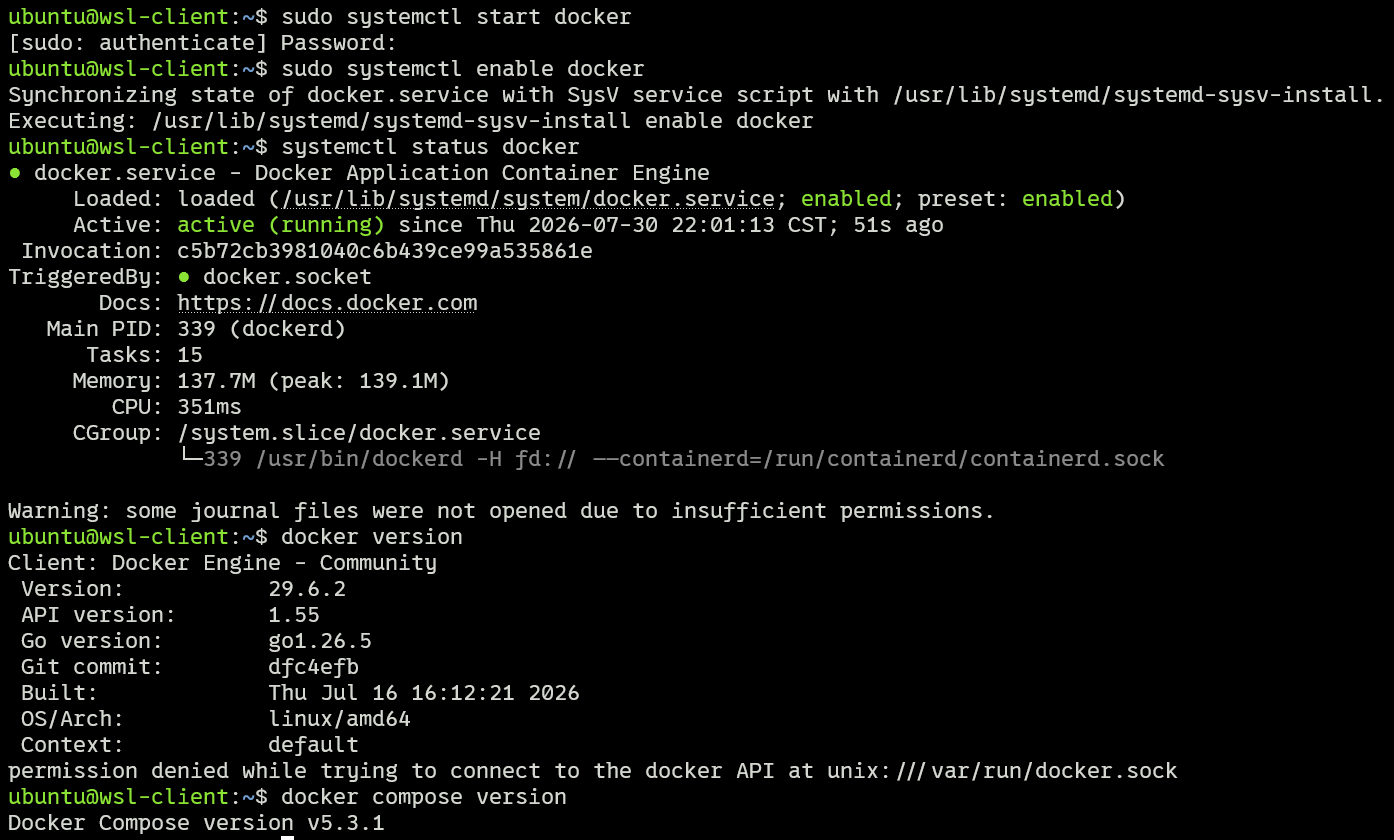
将用户加入 docker 组免去了每次执行 docker 命令时输入 sudo 的繁琐,但这也意味着该用户可以轻易获取主机的最高 root 权限,例如通过挂载根目录运行容器,。此时,更安全的替代方案是使用官方提供的rootless模式,它允许在没有任何 root 权限的情况下运行 Docker 守护进程和容器。
若在WSL使用systemctl命令遇到如下错误:
System has not been booted with systemd as init system (PID 1). Can't operate. Failed to connect to system scope bus via local transport: Host is down这是由于WSL默认的1号进程是init而不是systemd,可以通过修改WSL配置文件/etc/wsl.conf来启用systemd,具体文件内容如下:
[automount]
enabled=true
mountFsTab=true
root=/mnt/
[network]
generateHosts=true
generateResolvConf=true
hostname=wsl-client
[interop]
enabled=true
appendWindowsPath=true
[user]
default=ubuntu
[boot]
systemd=true
protectBinfmt=true
[gpu]
enabled=true
[time]
useWindowsTimezone=true
配置Docker镜像源
由于默认的Docker Hub在海外,国内直接连接Docker Hub可能会被阻断或者速度极慢,可以使用上文推荐的chsrc来配置Docker的镜像加速源。
ubuntu@wsl-client:~$ sudo chsrc set docker # 配置Docker镜像加速源
ubuntu@wsl-client:~$ sudo systemctl restart docker # 重启Docker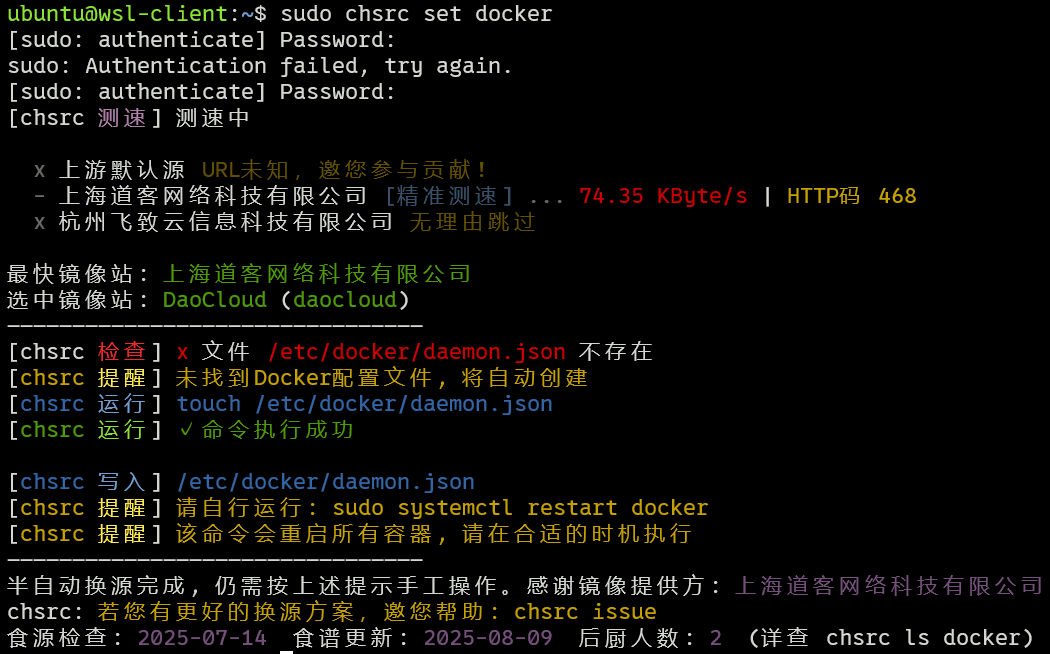
Windows安装Docker开发工具
由于Windows没有Linux kernel,因此需要安装Docker Desktop自动创建一个轻量 Linux 虚拟环境作为运行Docker Engine的容器。
Docker Desktop for Windows支持 64 位版本的 Windows系统,且必须开启 Hyper-V,点击链接即可下载 Docker Desktop for Windows安装包,Docker安装好以后不会自动启动,可以在 Windows 搜索栏输入 Docker 点击 Docker Desktop 开始运行。
推荐使用 Windows Terminal 在终端使用 Docker。
Ubuntu安装Docker开发工具
Ubuntu安装Docker Engine的流程与上文WSL安装Docker开发工具基本一致,可以参见上文。
第一个Docker镜像
做完以上全部配置以后,终于来到了第一个Docker镜像,Docker 会自动拉取 hello-world 镜像,然后创建一个临时容器运行它。正常情况下会看到以下内容:
ubuntu@wsl-client:~$ docker run hello-world
Unable to find image 'hello-world:latest' locally
latest: Pulling from library/hello-world
4f55086f7dd0: Pull complete
d5e71e642bf5: Download complete
Digest: sha256:7f4da0fc94bcece205a8c0b6f4d11c8196924654ffe5c4d1aa439b7f632048b2
Status: Downloaded newer image for hello-world:latest

Hello from Docker!
This message shows that your installation appears to be working correctly.

To generate this message, Docker took the following steps:
 1. The Docker client contacted the Docker daemon.
 2. The Docker daemon pulled the "hello-world" image from the Docker Hub.
    (amd64)
 3. The Docker daemon created a new container from that image which runs the
    executable that produces the output you are currently reading.
 4. The Docker daemon streamed that output to the Docker client, which sent it
    to your terminal.

To try something more ambitious, you can run an Ubuntu container with:
 $ docker run -it ubuntu bash

Share images, automate workflows, and more with a free Docker ID:
 https://hub.docker.com/

For more examples and ideas, visit:
 https://docs.docker.com/get-started/
如果看到了以上内容,则说明 Docker 安装成功,Docker Client 可以正常连接 Docker Daemon,并且能够拉取镜像、创建容器、运行程序。运行完成后,可以查看下载的镜像或者查看运行过的容器。
ubuntu@wsl-client:~$ docker images # 查看下载的镜像
IMAGE                ID             DISK USAGE   CONTENT SIZE   EXTRA
hello-world:latest   c3cbe1cc1aa5       25.9kB         9.49kB    U

ubuntu@wsl-client:~$ docker ps -a # 查看运行过的容器
CONTAINER ID   IMAGE         COMMAND    CREATED         STATUS                     PORTS     NAMES
b68046686ffe   hello-world   "/hello"   3 minutes ago   Exited (0) 3 minutes ago             infallible_hugle
hello-world 容器运行结束后会自动退出,这是正常现象,因为它的任务只是输出一段测试信息。你可以继续测试一个交互式容器:
ubuntu@wsl-client:~$ docker run -it ubuntu bash # 进入一个 Ubuntu Docker 容器
Unable to find image 'ubuntu:latest' locally
latest: Pulling from library/ubuntu
a3679419df18: Pull complete
ed819469700f: Pull complete
e16351a257e4: Download complete
Digest: sha256:3131b4cc82a783df6c9df078f86e01819a13594b865c2cad47bd1bca2b7063bb
Status: Downloaded newer image for ubuntu:latest
root@873d57035b1e:/#如果想要退出Docker容器,只需要输入exit命令即可退出容器。
如果发现内容中存在错误,或有任何改进建议,欢迎随时交流与反馈。